


XB CONTROLLER
3.617.00 Reviews
App Specs
- Version
- 9.0
- Updated On
- License
- Free
- Downloads
- 50,000+
- Developer
- SweatersApp
- Categories
- Libraries & Demo
- Platform
- Android
Screenshots
 Analysis by AppCompare
I tend to notice the value of a phone controller most when a shared screen is already in use. Someone may be watching something, a console is in another room, or the usual controller is out of reach. XB CONTROLLER is aimed at that sort of convenience: it turns a phone into a way to control Xbox gaming rather than asking everyone to find another physical pad. I’d treat it as a practical option for a particular setup, not as a guaranteed replacement for a dedicated controller.
When a phone makes sense in a shared home
Picture an ordinary evening: the console is ready, but the controller has been left elsewhere, or another person is using the television and you’re trying to keep gaming flexible. A phone can be easier to grab than extra hardware, and that is the clearest household use case I see for this app. It may also help when a visitor wants to try a game without someone having to hand over their usual controller.
That convenience has a trade-off. A phone is a personal device, so using it as a shared control surface means agreeing who gets to hold it and when. I’d keep the plan simple: decide whose phone is being used, make sure it has enough charge, and avoid passing it around while someone is actively playing. Those small steps matter more than any claim of effortless family play.
Separate the phone, console, and account expectations
Before setting up, I’d clarify which device is doing what. The phone is the control interface; the Xbox remains the gaming device. That distinction helps prevent a common misunderstanding: installing a controller app does not, by itself, mean every game, account, or console arrangement will behave the same way. Check that the intended console and game are the ones you want to use, then follow the app’s actual setup prompts rather than assuming a phone can control any gaming session automatically.
The published setup description in the original review says an Xbox account is connected. In a household, I would pause before entering account details on a phone used by several people. Use an account only when its owner is comfortable with that arrangement, and don’t treat a shared phone as a reason to share passwords. If another person’s account is involved, ask first and keep the account owner in control of sign-in decisions.
There’s also a useful boundary between temporary convenience and a permanent household setup. If you only want to try the app once, keep the test limited to that session and check what the app asks you to do. If you expect to use it regularly, decide whether the phone is personal or shared and who is responsible for keeping it charged and available. That routine can prevent avoidable confusion later.
Coordinate before the game starts
A phone controller works best when the people involved agree on the handoff before play begins. I’d confirm that the phone owner is happy to lend it, choose a comfortable place to set it down between turns, and make sure notifications or incoming calls won’t interrupt someone holding it. I’m not suggesting the app has special household scheduling or sharing tools; this is simply the kind of coordination that makes a phone-based control method less awkward.
Worth Reading Before You Choose

EA SPORTS FC Mobile 26 Is a Bigger Football Game, but It Takes Time

Flipboard Shows What News Apps Must Do Beyond the Feed

Switching to Android Auto Means Rethinking Your Driving Routine

Google Calendar Makes a Crowded Week Easier to Manage

Ludo King Makes the Most of the Minutes Between Plans

Baby Panda World Brings Quick Play to Modern Phones, but Its Game Library Feels Busy
For a short session, try the controls in a low-pressure game before relying on them for a tense match. That gives the player time to get used to the layout and helps everyone see whether the phone is comfortable to hold. If the person playing needs tactile buttons or a familiar controller shape, a physical pad is likely the kinder choice. A phone touchscreen can be convenient without feeling natural to every player.
Age, comfort, and trust
The app is rated for Everyone, which makes its age context straightforward, but an age label is not a substitute for an adult’s judgement about a child’s device use or account access. In a family, I’d let a parent or guardian handle decisions about sign-in and the phone itself, especially if it contains personal messages, payment details, or other private information. Keep the child’s access to the device appropriate to your household’s rules.
Comfort is part of trust, too. A child may be delighted to use a phone as a controller, while an adult may worry about a phone being dropped or carried around during play. A stable seat and a clear place to put the phone between turns can reduce that risk. If protecting the phone is a priority, using a dedicated controller may be a better fit than asking a family member to share a fragile everyday device.
Who will get the most from it?
I see the strongest fit for someone who already plays on Xbox, is comfortable with touchscreen controls, and wants a phone-based alternative for occasional use. It can also suit a household that values having one less accessory to keep track of, provided everyone understands that the phone is still needed for its normal duties. A spare device may be more practical than the phone someone relies on for calls, messages, and work.
I’d be more cautious if you play for long stretches, rely on precise physical feedback, or can’t risk the phone being unavailable. Competitive play and games that demand quick, accurate inputs are situations where a conventional controller may feel more dependable. This is not a judgement that the app cannot be used for those games; it is a reminder that touchscreen comfort and connection quality vary by person and setup.
How it differs from the usual options
Compared with a standard physical controller, a phone app offers less extra hardware but asks the phone to do double duty. That can be a fair exchange for a casual session, though not necessarily for a long one. Compared with a console’s own control method or another established way of playing, the deciding question is not which option sounds more modern; it is which one feels responsive and comfortable in your room, on your network, and with the game you actually want to play.
One practical way to judge that is to test before inviting others into the session. Try the app in the same place where you expect to play, and check whether the controls feel manageable over a few minutes. If the experience is steady and the layout works for you, keep it as a convenient backup. If you notice delays or find yourself looking down too often, switch to a physical controller instead of trying to force the phone into a role it doesn’t suit.
First Impressions
Alright, let’s dive right in! When you first fire up XB CONTROLLER, you’re greeted with a very sleek and intuitive interface. It’s not overloaded with unnecessary clutter, which is a big plus in my book. Everything is laid out in a way that just makes sense, even if you’re not super tech-savvy.
Setting Up
Setting up the app was surprisingly easy. I was half-expecting a complicated process with lots of fiddly bits, but nope! The app guides you through the setup with clear instructions, and before you know it, you’re ready to roll. You just need to connect your Xbox account, and you’re good to go. Simple as that!
Features Galore
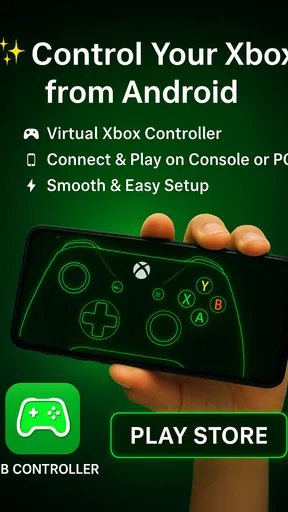
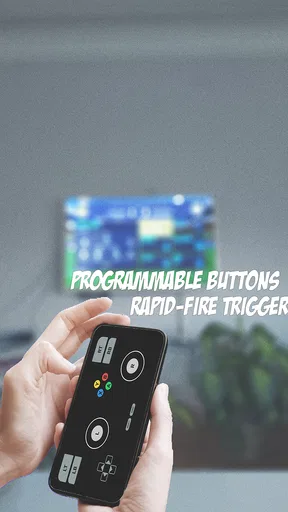
So, what can you do with XB CONTROLLER? For starters, it turns your smartphone into a fully functional Xbox controller. Yeah, you heard me right! This means you can control your Xbox games straight from your phone, which is pretty cool if you ask me. It’s got all the buttons you need, and they’re surprisingly responsive.
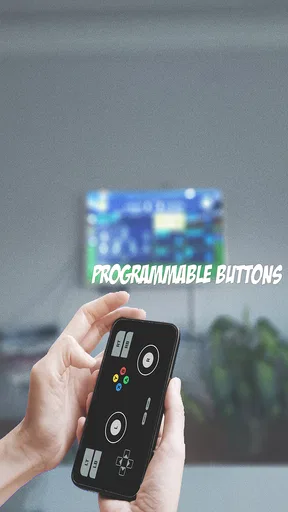
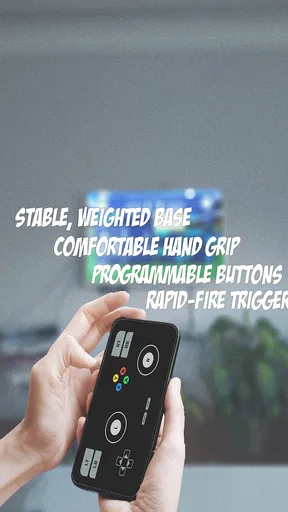
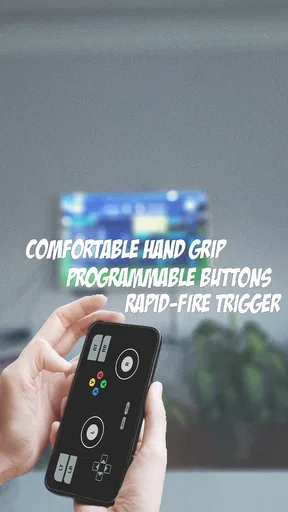
Another neat feature is the ability to customize your controls. You can tweak the layout to your liking, so whether you’re playing a fast-paced shooter or a chilled-out platformer, you can set up your controls just right. This flexibility really enhances the gaming experience.
My practical tip is to adjust the layout before a proper session, not during a match. A quick test lets you find a button arrangement that feels reachable without blocking the part of the screen you need to see. I’d also avoid making several changes at once: change one thing, try it, and keep it only if it genuinely makes the controls easier to use. That makes it simpler to return to a layout you liked.
Performance
Now, let’s talk performance. I was genuinely impressed by how smooth everything ran. There was minimal lag, and the connection was pretty stable. Whether I was playing a casual game or something more intense, the app kept up beautifully. It’s almost like having a real controller in your hands.
Of course, your mileage may vary depending on your internet connection, but if you’ve got a decent setup, you’re in for a treat.
When something feels slow, I wouldn’t immediately blame the controls. First check whether the connection is behaving consistently, then try again from a spot with a stronger signal. If the delay persists, the app may simply not be the right choice for that network or that game. A controller that feels acceptable for a relaxed session can become frustrating when timing matters.
Compatibility
One thing that’s definitely worth mentioning is the app’s compatibility. XB CONTROLLER works with a wide range of Xbox games, which is fantastic. I tried it with a few different genres, and it handled each one like a champ. Plus, it’s available for both Android and iOS, so no one’s left out of the fun.
For the Android release, SweatersApp lists it as a free app in the Libraries & Demo category. It has an average rating of 3.6 from around 214 ratings, with more than 50,000 installs, so it has attracted a real audience while still leaving room for mixed experiences. The current version is 9.0, and Android 6.0 or later is required. I’d check that requirement on the device you plan to use before building a shared routine around it.
Usability
In terms of usability, I found the app to be pretty user-friendly. The interface is clean, the buttons are easy to navigate, and the whole experience feels really polished. It’s clear that the developers put a lot of thought into making this app accessible to everyone.
For a shared device, I’d still keep expectations realistic: “easy to use” does not mean everyone will prefer the same layout. A first-time player may need a little practice, while someone used to physical buttons may find the screen controls less satisfying. Let each person test the arrangement briefly instead of assuming one person’s settings will work for the whole household.
Things to Keep in Mind
While XB CONTROLLER is fantastic, there are a couple of things to keep in mind. For one, you’ll need a strong internet connection to get the best experience. If your Wi-Fi is spotty, you might encounter some lag. Also, make sure your device is up to date to avoid any compatibility issues.
Oh, and keep an eye on your battery! Using your phone as a controller can drain it pretty quickly, especially if you’re playing for long periods.
Those limitations shape my recommendation more than the initial novelty does. I’d use it for a brief, convenient session or as a backup when a physical controller isn’t handy. I wouldn’t make it the household’s only plan for a long evening unless everyone had already tested the connection, battery situation, and touchscreen comfort. Keeping a charger nearby may help, but it doesn’t remove the inconvenience of tying up a phone.
XB CONTROLLER is free and rated for Everyone, which lowers the barrier to trying it, but I’d still make the account and device decisions deliberately. It has 17 written reviews alongside its broader rating history, and those figures are best treated as context rather than a guarantee that it will behave the same way in every home. The useful test is still your own: can the intended player connect, understand the controls, and enjoy a session without disrupting the phone’s everyday use?
Final Thoughts
All in all, XB CONTROLLER is a solid app that brings a whole new level of convenience to gaming on your mobile device. It’s easy to set up, packed with features, and offers a seamless gaming experience. Whether you’re a hardcore gamer or just someone who likes to play on the go, this app has something for everyone. So, if you’re looking to enhance your Xbox gaming experience, give XB CONTROLLER a shot. I think you’ll be pleasantly surprised!
My household verdict is more specific: I’d recommend giving it a try if you want an occasional phone-based control option and are happy to test it before depending on it. I’d skip it as a primary controller if precise tactile input, extended play, or keeping a shared phone free matters more. For families, the best approach is to agree on the device and account boundaries first, then let the person playing decide whether the touchscreen actually feels good. That keeps the convenience in perspective and makes the app useful for the situations it handles best.
Pros
- Intuitive interface for easy navigation.
- Seamless connectivity with multiple devices.
- Customizable button mapping options.
- Ergonomic design for comfortable use.
- Long battery life enhances gaming sessions.
Cons
- Limited compatibility with older devices.
- Occasional connectivity drop issues.
- No support for vibration feedback.
- Requires frequent firmware updates.
- Higher price compared to competitors.
FAQs for XB CONTROLLER
What platforms is XB CONTROLLER compatible with?
XB CONTROLLER is designed to be compatible with both Android and iOS devices. It seamlessly integrates with a wide range of smartphones and tablets, providing an intuitive interface for gaming control. To ensure optimal performance, make sure your device meets the minimum system requirements specified by the app.
How easy is it to set up XB CONTROLLER?
Setting up XB CONTROLLER is straightforward. After downloading the app, follow the on-screen instructions to connect your device via Bluetooth. The app provides a step-by-step guide to ensure a hassle-free setup. In just a few minutes, you'll be ready to enjoy enhanced control over your gaming experience.
Does XB CONTROLLER support customization of controls?
Yes, XB CONTROLLER offers extensive customization options. Users can map buttons according to their preferences and save different profiles for various games. This flexibility allows gamers to tailor their control schemes, enhancing comfort and performance during gameplay.
Is there a cost associated with using XB CONTROLLER?
XB CONTROLLER is available as a free download, with optional in-app purchases for advanced features. The free version provides essential functionalities, while premium options unlock additional customization and control settings, catering to serious gamers seeking a more personalized experience.
What should I do if I encounter connectivity issues with XB CONTROLLER?
If you experience connectivity issues, ensure that Bluetooth is enabled on both your mobile device and the controller. Restarting both devices can often resolve minor glitches. Additionally, check for any available updates for the app, as developers frequently release patches to improve stability and performance.


